


























Pixel Gun Apocalypse 9: Choose a Multiplayer Match or a Zombie Mission
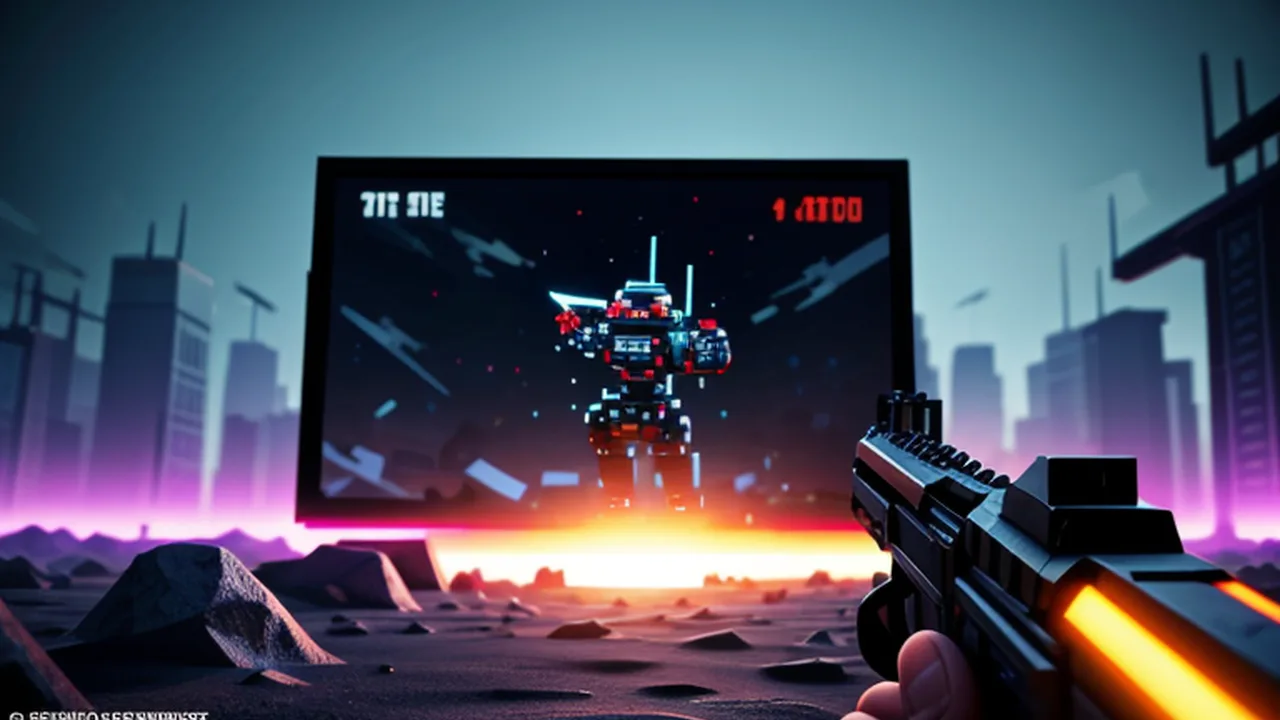
Pixel Gun Apocalypse 9 is a block-style browser shooter whose game page describes multiplayer matches and a separate set of zombie missions. The first choice is which of those you want to play. If friends are waiting, find out how the current multiplayer menu lets you join them. If you have a few minutes on your own, a zombie mission can give you a clearer place to learn the interface. The modes give you different goals even when they share a similar view and set of inputs.
Open Pixel Gun Apocalypse 9 and give the current player time to show its menu. The number is part of the title. A different game in the Pixel Gun Apocalypse family or a video about another installment can show other options. Use the active game window to confirm what you are opening, especially if you followed a search result that mentioned several releases together.
Read the menu before committing to a match
A multiplayer option can mean a list of public matches, a room you can create or another flow that lets you join players. Look at the available controls and follow the particular method the current game offers. If your group expects to play together, have one person start from the menu and another confirm they can join using the same route. Check for the matching room, map or other visible identifier before sending the rest of the players there.
A public match can be a useful choice when you want to get a sense of the game's pace without organizing a group. Before joining, look at the title or description of the mode and find what it counts as a result. Some screens make that clear in the match list. Others explain the goal after you enter. If your plan is to play briefly, use the least complicated join option that meets what you want to do.
The zombie missions are described as offline missions on the game page. In a web context, treat that label as a mode description. The page and its embedded player still need to load in your browser, and availability can depend on the current host. Choose a mission if you want to use the game's own progression without setting up a room with friends. Read the first objective and see how the scene tells you when that part is complete.
Learn where the game puts the information you need
Once a game begins, look for the crosshair, the status panel and the place where a new objective appears. The block-style graphics can make nearby objects easy to identify, then a change in camera or lighting can bring more of the screen into view. On a quiet part of the map, make one small movement and see how the current view moves with you. Let the display settle before adding another input. That gives you an idea of how large a change you can follow while still reading the objective.
If a game has a pause or controls menu, find it before you need to look up several inputs at once. Use it to check the keys and mouse actions the current build supports. Test one movement at a time where it is easy to connect the button with the result. If the game captures the pointer, follow the browser's visible prompt when you need to return to the page. Keyboard input usually feels easier to diagnose when the player has a clear focus and you can see what the page does in response.
Give every new mode a minute to explain itself. The objective and result display can be different in a mission and a public match. Look for the part that says what is happening right now, such as a round indicator or the next visible instruction. A game can be moving on screen while you are still reading that information. If so, choose an opening where you can learn one part without trying to follow every update at once.
Use a zombie mission as a first practice session
A zombie mission is a useful place to decide how quickly you can read the game's interface. Begin with a modest goal. Reach the first checkpoint the game identifies or stay until you see a clear wave transition. Observe where the change appears and how you can tell what the game expects afterward. Then return your attention to the scene. That simple routine helps when you come back to a mode with more information moving together.
If an attempt ends early, look for one detail that seemed unclear. You may have spent part of the scene checking where a prompt appeared, or had difficulty changing the view while moving. Look at the controls to see whether there is a setting or input that makes that particular action easier. Then use a familiar part of a mission as the comparison. You can learn enough for a useful short session without needing to reach the final stage.
Do the same if you are trying a new map. Identify a place you recognize on the way in, such as a large shape or a distinct color. See how it looks when the game has turned the view around or opened another section. Knowing a landmark makes it easier to tell whether the next scene follows from the current one or is a different part of the map. Record what the game calls the mission if you want to find it again.
Make a multiplayer session easy to repeat
Agree on what the group will open and how long you have for the first match. Let the first session establish the controls and the way the mode shows a result. If someone has trouble joining, have them read the exact mode or room label they see. That is easier to compare than deciding someone is on the wrong version from a similar-looking title alone. If a feature is missing, check what the current game offers instead of relying on old screenshots.
Between rounds, ask what the group found easiest to follow. Some players may want a map with a clear layout or a mode they understand quickly. Others may care more about being able to rejoin without repeating setup. Use that feedback to choose the next match. A short sequence that everyone can enter and finish comfortably is more useful than moving on to a new setup before people know how the first one worked.
If you have just enough time for one match, confirm the way out as well as the way in. Look for the screen that shows the result and the point where a new match would start. Stop after reading the result when you need to leave. If you have more time, repeat one mode before changing maps or players, so you know which part of the result has changed.
Choose a different view when you want another kind of round
Zombie Quell 3D gives you an overhead view and rounds built around waves. Use it when you want the positions around the player to be visible at once. A central overhead camera changes what information you can notice compared with looking in the direction of a first-person character. Open one early round and see how the view represents the edge of the current arena. You can use that experience to decide which layout suits a quick visit.
Last Road Out takes the zombie theme into a campaign with objectives along an evacuation road. It gives you a different way to finish a short session. Reach a scene or follow one piece of the radio-led story, then leave the later stages for another visit. It also offers a survival mode if you prefer a standalone round. Check the version shown by the current browser player before choosing which objective to pursue.
Start with Pixel Gun Apocalypse 9 when you want to compare a block-style multiplayer match with a zombie mission. Choose the overhead game when you want to read a wave in a different view, or choose a campaign when the next landmark or objective matters to you. Give any option a short test with the controls you actually have. Once you can recognize the point that tells you how to begin and when to stop, you can spend most of the visit playing.
Make one repeatable test before changing settings
Use a short mission to find out whether the moving view feels smooth enough to read. If it does, move on to learning a control. If the whole scene seems to stutter, inspect any display options the current version gives you and change one setting at a time. Try the same opening movement after the change. If the view becomes easier to follow, check that the objective display is still legible. A setting that improves how a game responds is useful when you can recognize the improvement in a small repeatable action.
If you are playing on a smaller screen, look at the menus and input hints before assuming the desktop layout will be practical. The current version is the only useful test of what you can actually reach and see.